About five rows around the pointer fade to ~1% opacity. The rest of the page remains under the mesh.
Fence View
Reveal band, not full clear
Per-row DOM, not a shader
Designed for full-page captures
A moving mesh over your PDF. Only the reader's cursor clears it.
Fence View paints a full-screen mesh of text characters on top of the PDF viewer. A narrow band of rows around the reader's cursor, or finger on mobile, fades to near-zero opacity so it can be read. Everywhere else stays covered.
Status: still supported, no longer recommended. Fence View works and every share already using it keeps working. For new shares we suggest SecureView for ordinary reading — and if the worry is genuinely screenshots, App DRM rather than a browser deterrent, because only the app can make the operating system refuse the capture.
The goal is not to stop reading. It is to break the shape of a screenshot: a full-page capture returns mostly mesh, because only a few rows were ever clear at the moment the shutter fired.
Cursor-follow reveal
Mesh covers the rest
Touch works on mobile
Right-click & copy disabled
Resize-reactive
Each row is a real element with its own opacity toggle. That is why screenshots do capture the mesh as drawn.
A single screenshot or screen recording frame shows one clear strip and a lot of mesh. That is the point.
Mesh overlay
Follows cursor
Mobile touch aware

What a screenshot sees
At any instant, most of the page is covered. A full-page grab is mostly mesh plus one thin readable band.
What the reader experiences
Must track cursor to reveal lines one at a time. Slower, more tiring than normal reading. Protects against casual screenshots at the cost of friction.
How It Works
A curtain of vertical bars, with a small clear window that follows your cursor.
Fence View is a simple idea. Once you picture the curtain and the moving clear window, the rest follows.
A curtain is drawn over the PDF
When the page opens, MaiPDF lays a dense pattern of vertical bars across the whole reading area. The PDF sits underneath, hidden behind the pattern.
The pattern fills every line
The bars run edge to edge, top to bottom, as a solid visual texture. From across the room it looks like a striped blind covering the page.
Where you point, a narrow band clears
As your mouse or finger moves across the page, a short strip of the curtain right under the pointer fades away, so you can read the few lines you are looking at.
Move away and the curtain closes
The moment the pointer leaves, the bars slide back in over those lines. The clear band is always small, and always only there while you are actively reading it.
Zoom, resize, rotate, still covered
If you change the window size on a laptop or turn your phone sideways, the curtain is automatically redrawn to match the new shape. No gaps are left uncovered.
Right-click and copy are turned off
Right-click "Save Image As" and text selection copy are both switched off in the viewer, so no one can sneak past the curtain by pulling the page out a different way.
Real cover: the curtain is part of what the screen shows, so a screenshot captures it too.
Narrow window: at any moment only a small band is clear, the rest of the page stays hidden.
Follows the reader: your eyes go where your cursor goes, so the clear band is always on what you are actually reading.
Live Demo
Move your cursor across the box.
This is a simplified demo, not the real reading view. It shows the idea: only the rows under the pointer clear, the rest stays covered.
Market Analysis Report — Q3 2026
1. Executive Summary
Revenue across the North American segment grew 12.4% year over year,
driven primarily by sustained demand in the enterprise tier and a modest
recovery in mid-market renewals during the latter half of the quarter.
Gross margin expanded by 180 basis points, reflecting the consolidation
of cloud infrastructure vendors completed in late August.
2. Regional Performance
Europe continues to lag initial forecasts by roughly four percentage
points, though pipeline coverage heading into Q4 remains healthy at 3.1x.
Region Revenue YoY Margin
NA $182.4M +12.4% 41.2%
EMEA $ 94.1M + 3.8% 37.6%
APAC $ 61.7M +18.9% 39.0%
3. Outlook
Management reiterates full-year guidance and expects modest tailwinds
from the new partner program launching in October. Key risks include
foreign exchange exposure and a softer-than-expected SMB renewal cycle.
4. Risk Factors
Concentration risk remains elevated, with the top ten customers
accounting for 38% of annualised recurring revenue as of quarter-end.
Churn in the SMB cohort rose to 2.1% monthly, up from 1.7% in Q2.
5. Methodology
Figures are reported on a constant-currency basis unless otherwise
noted. Prior period comparisons exclude the divested hardware unit.
Metric Q3 2026 Q3 2025 Δ
ARR $338.2M $301.0M +12.4%
NRR 114% 109% +5.0pt
Logos 2,184 1,902 +14.8%
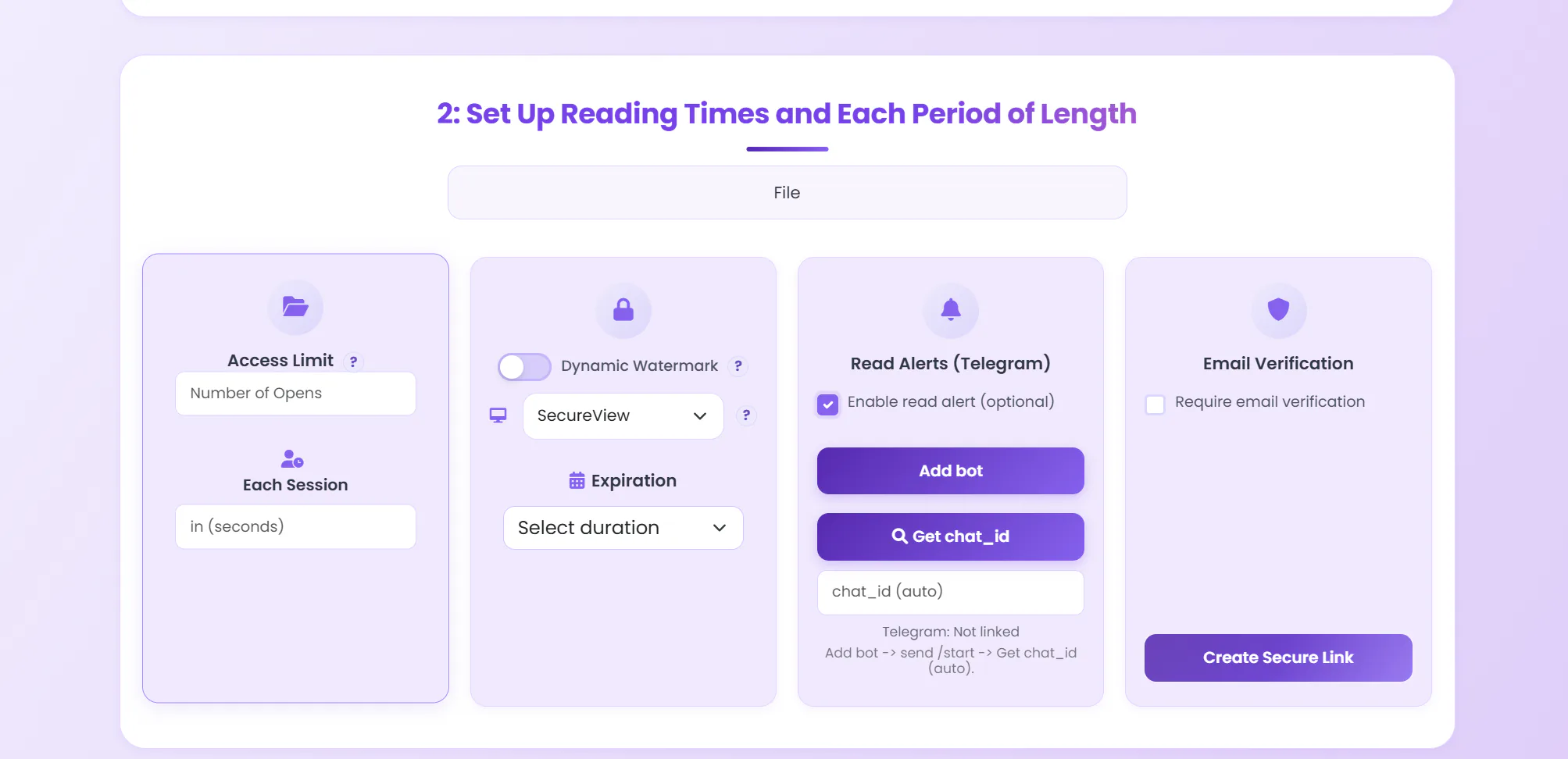
Setup
Four steps to share a PDF in Fence View.
Fence View is a reading-mode choice inside the normal MaiPDF share flow. There is no separate product or extra install.
Upload the PDF
Start in the MaiPDF upload page. No login needed to try; logged-in users can manage the share later.
Pick Fence View mode
In the sharing settings, choose Fence View instead of the default reading mode. Add expiration, access limit, and watermark.
Generate link or QR
The same share flow returns a URL, QR code, Read Code, and Modify Code. Distribute the link however you share normal PDFs.
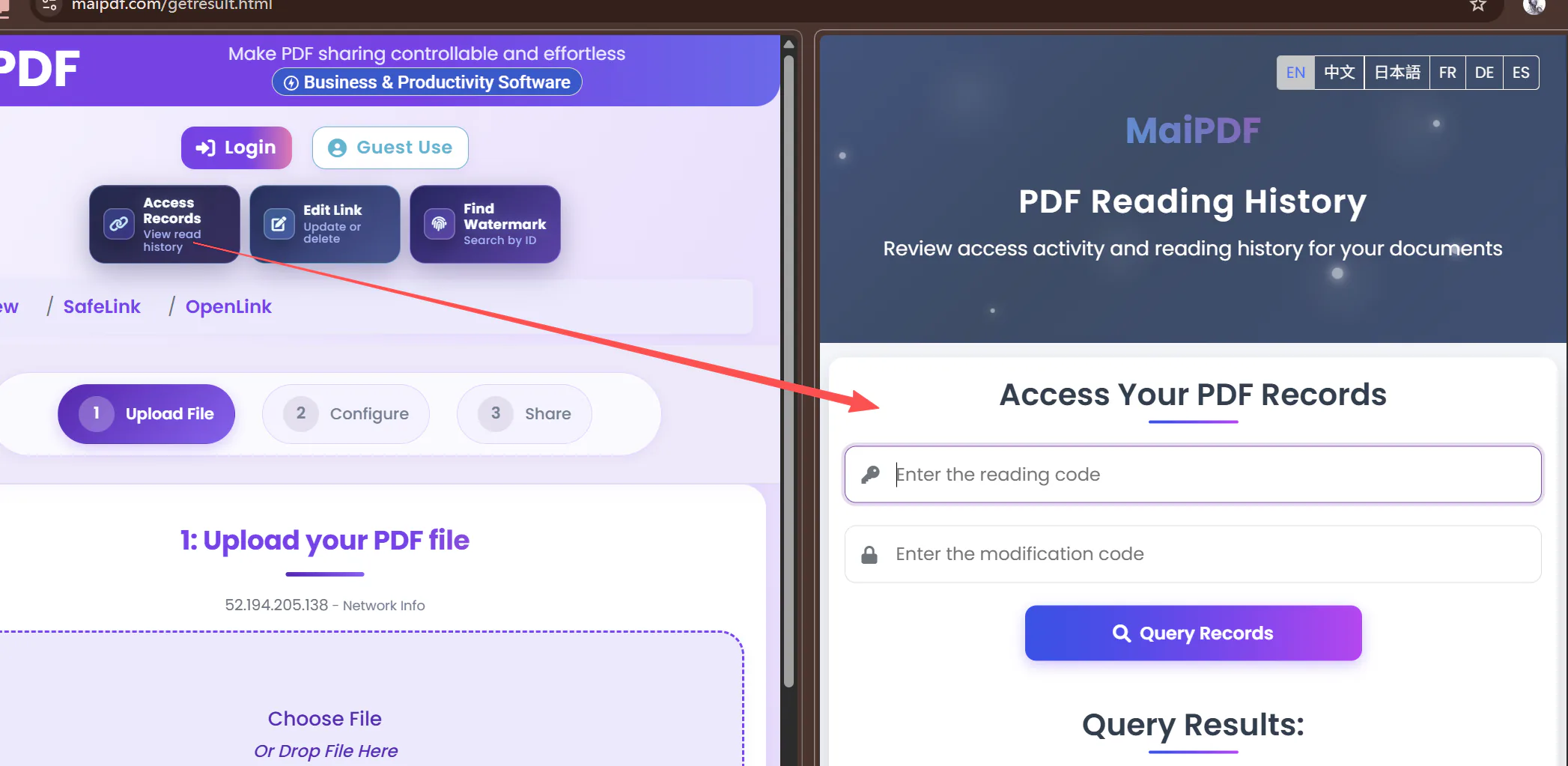
Check access records
After the link is opened, review who accessed it. Fence View does not replace this trail, it sits alongside it.
Good pairings with Fence View
- Dynamic watermark: any screenshot that does get through carries a code that resolves to who opened it — the verified email address if verification was on, and the IP, browser and time either way.
- No print & no download: keeps the PDF inside the governed viewer rather than escaping as a raw file.
- Access limit & expiration: shrinks the window an attacker has to iterate.
- Email verification: ties each open to a known recipient before the mesh even loads.
Fence View is the overlay layer.
Watermark is the traceability layer.
Records are the audit layer.
Fence View Vs SecureView
Two reading modes, different trade-offs.
SecureView is the everyday default. Fence View is the stricter option for documents where a clean full-page screenshot is the real risk.
SecureView
Protected reading without the overlay.
- PDF renders clearly, page by page, in the viewer.
- Download and print buttons are hidden; right-click is disabled.
- Best when reading comfort matters more than screenshot friction.
- Good default for client decks, shared reports, course readings.
Fence View Stricter
Everything SecureView does, plus the moving mesh. Reading is noticeably slower.
- A pipe-character mesh covers the whole viewer at all times.
- Only ~5 rows around the cursor clear while the reader looks there.
- Full-page screenshots and screen recording capture mostly mesh.
- Use only when full-page screenshot risk is real, and you accept the friction.
Honest Limits
What Fence View is, and is not.
Writing this honestly matters more than a sales claim. Fence View is a browser friction layer, not a DRM system.
What it helps with
- Full-screen screenshots captured while the mesh is up.
- Screen recording: each frame is mostly mesh plus a narrow clear band.
- Casual right-click, drag-to-save, and text selection copy.
- Signaling that the document is under stricter rules, not casual share.
What it does not claim
- Blocking an external camera pointed at the monitor.
- Blocking patient, row-by-row capture with post-processing.
- Replacing watermarking, access limits, expiration, or records.
- Working when the reader has already downloaded the file locally.
Beyond The Browser · App DRM
Want the operating system itself to refuse the screenshot?
Fence View fights screenshots with friction inside the browser. The MaiPDF app takes a different route: it hands the file to a native reader that asks the operating system to mark the document window as protected. The screenshot or screen recording comes back black — and the reader still reads the page normally, with no mesh in the way.
FLAG_SECURE; on Windows, WDA_EXCLUDEFROMCAPTURE; on macOS the window’s sharingType is set to none; on iOS the content is rendered through a layer the system excludes from capture.What the app adds on top of Fence View
- OS-level capture block: the screenshot and screen recording come back black — no mesh, no reading friction.
- Encrypted
.maipdfcontainer: AES-GCM 256-bit; the file only opens inside the app, never as a raw PDF on disk. - Traceable watermark: every page carries a faint tiled code tied to that reader and device, and it cannot be switched off. If a page is photographed and leaks, the app’s Trace watermark tool takes the code off the image and tells you who opened the file, when, and on which device.
- Device binding & revoke: tie a file to a device and cut off access at any time, even after it is delivered.
- Hostile-environment block: refuses to open on rooted, jailbroken, or virtual-machine setups where capture is trivial.
No reading friction.
Screenshot returns black.
Every page watermarked.
Where the app is stronger
- The OS refuses the capture instead of relying on an overlay the eye can still read around.
- Screen recording is blocked at the source, not just covered frame by frame.
- Reading stays comfortable — the page is fully visible, no moving mesh.
- Protection travels with the file, not just with the browser link.
What it still cannot stop
- An external camera pointed at the screen — no software stops that.
- Unsupported, rooted, jailbroken, virtualized, or policy-bypassing environments should be blocked instead of trusted for sensitive files.
- It needs the reader to install the app, so it is for high-sensitivity files, not casual shares.
- Like Fence View, it is one layer — pair it with watermark, expiry, and records.
The Real Trade-off
Fence View makes reading slower. Accept that first.
Before you turn this on, know what you are asking your reader to do.
What reading feels like
You move your cursor line by line through the document. Each line is revealed only while you point at it. Looking ahead requires moving your finger or cursor further down. Long documents feel exhausting.
- Scrolling a page takes longer; you guide the reveal band instead of scanning freely.
- Skimming is hard; you cannot see multiple lines at once to jump around.
- Mobile is slower; single-finger tracking on a small screen is tiring.
- Reading comprehension drops when context shrinks to five lines at a time.
This is the price of friction
The mesh protects against casual screenshots because it makes the document harder to read. That is the whole point. If your reader tells you it was painful, they are right.
- Do not use Fence View for long documents unless the content leak is your only concern.
- Do not use it for contracts or materials people need to study carefully; SecureView is better.
- Do not use it for everyday sharing; it is a last resort.
- The reader is doing you a favor by tolerating the friction. Acknowledge that.
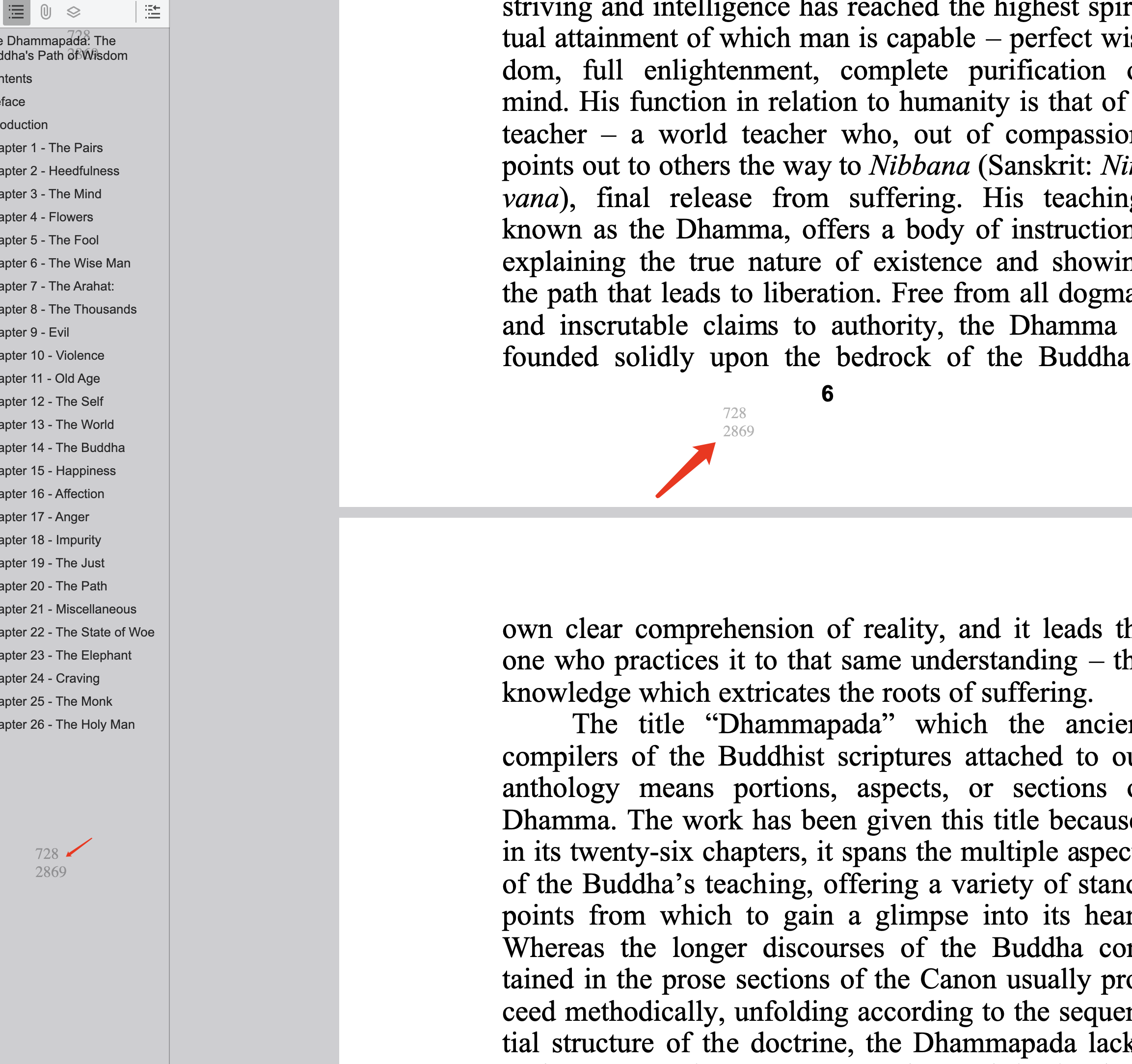
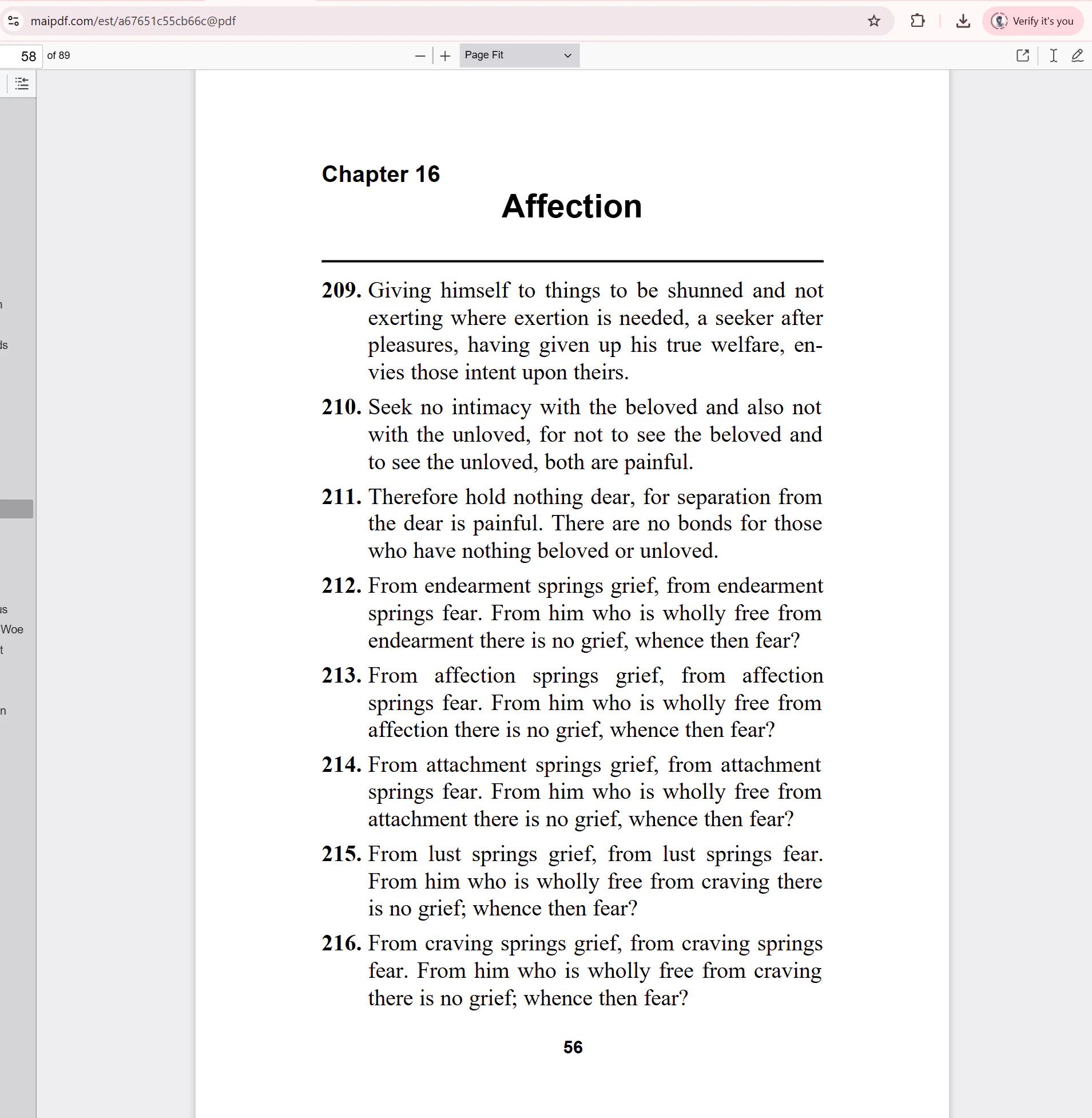
Visual Proof
The stack Fence View belongs to.
Fence View is most useful when it sits next to watermark, access rules, and records, not alone.

FAQ
Questions that actually come up.
Direct answers, written the way an operator setting up a real share would ask them.
What does Fence View actually do to a PDF?
It draws a full-screen mesh of text rows on top of the PDF viewer. Only about five rows around the reader's cursor (or finger) fade to near-zero opacity at any time. The rest of the page stays covered, so a screenshot captures mostly overlay instead of readable content.
How is Fence View different from SecureView?
SecureView is the standard protected reading mode: the PDF renders clearly, and the download and print controls are removed from the viewer. Fence View adds the moving mesh overlay on top of that. SecureView is smoother to read; Fence View adds more friction against screenshots, though neither actually blocks a capture the way the app does.
Does Fence View work on mobile?
Yes. On mobile the mesh reacts to touch: the band around the finger clears, the rest stays covered. On iOS and Android the overall screen screenshot therefore captures mostly mesh.
Can Fence View stop every possible capture?
No. A determined user with an external camera can still photograph the monitor, and careful row-by-row capture is possible. Fence View is designed to make one-click screenshots and casual screen recording unhelpful, not to make capture impossible.
Does copy-paste or right-click still work?
No. Fence View shares disable the context menu and text-selection copy on the viewer. The reader can still page through the document normally inside the clear band.
When should I pick Fence View over SecureView?
Honestly: rarely, and less often than this page once implied. If a full-page screenshot is your real risk, Fence View is not the right answer — it degrades the capture, it does not prevent it, and a patient person can still read and photograph the screen. That job belongs to App DRM, where the operating system itself refuses the capture. Fence View still works and existing shares using it are unaffected, but it is no longer what we recommend for new ones. Default to SecureView for readability, and move to the app when capture genuinely has to be blocked.
Start Here
Turn it on for one real PDF and see what a screenshot captures.
Upload a PDF, pick Fence View in the share settings, open the link yourself, and try to take a full-page screenshot. The result is the fastest way to understand exactly what the feature does.