The share has a defined deadline or count, not an open-ended link that lives forever.
Expiration & Self-Destruct
Real end point
Still browser-based
Records survive expiry
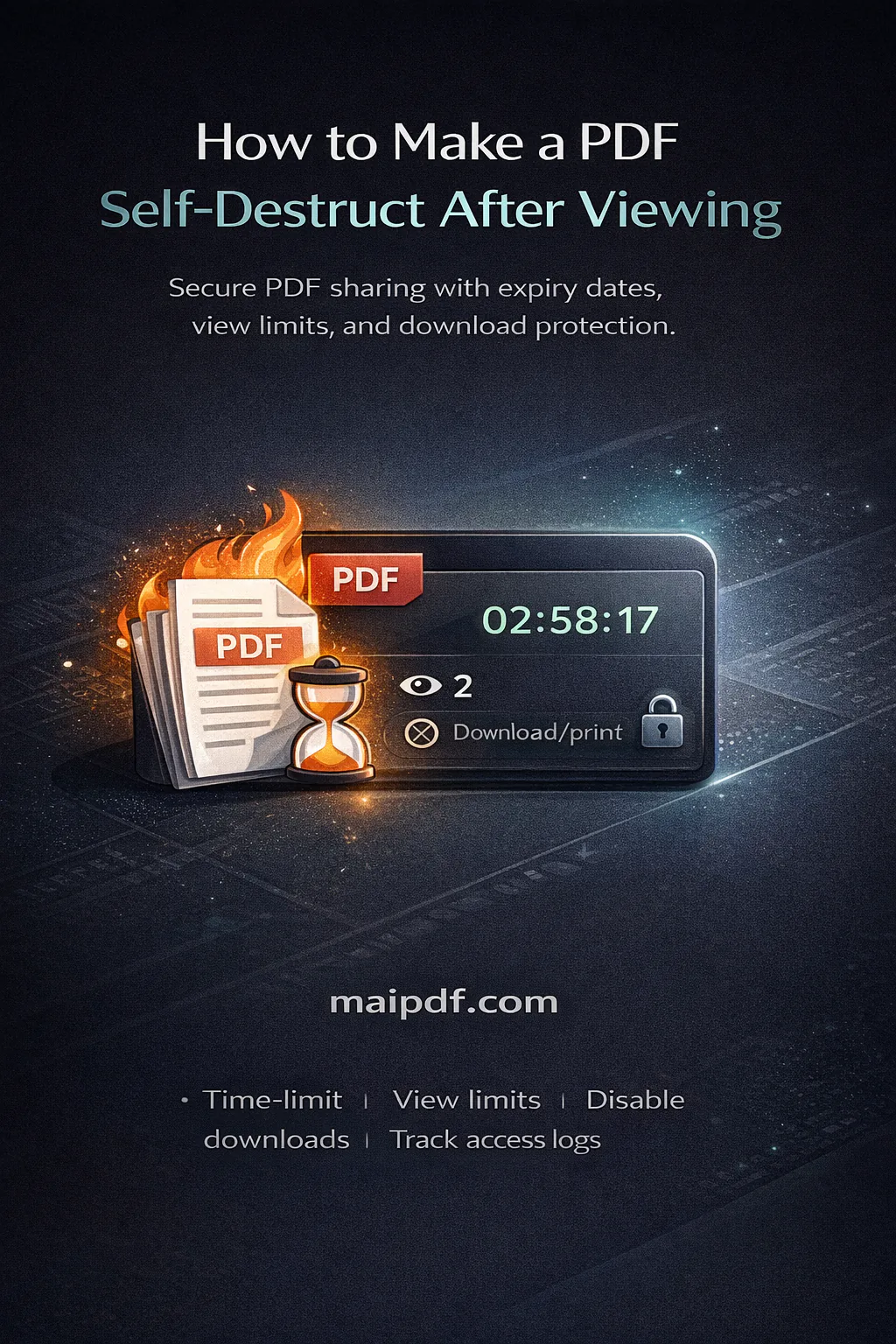
One PDF. One deadline.
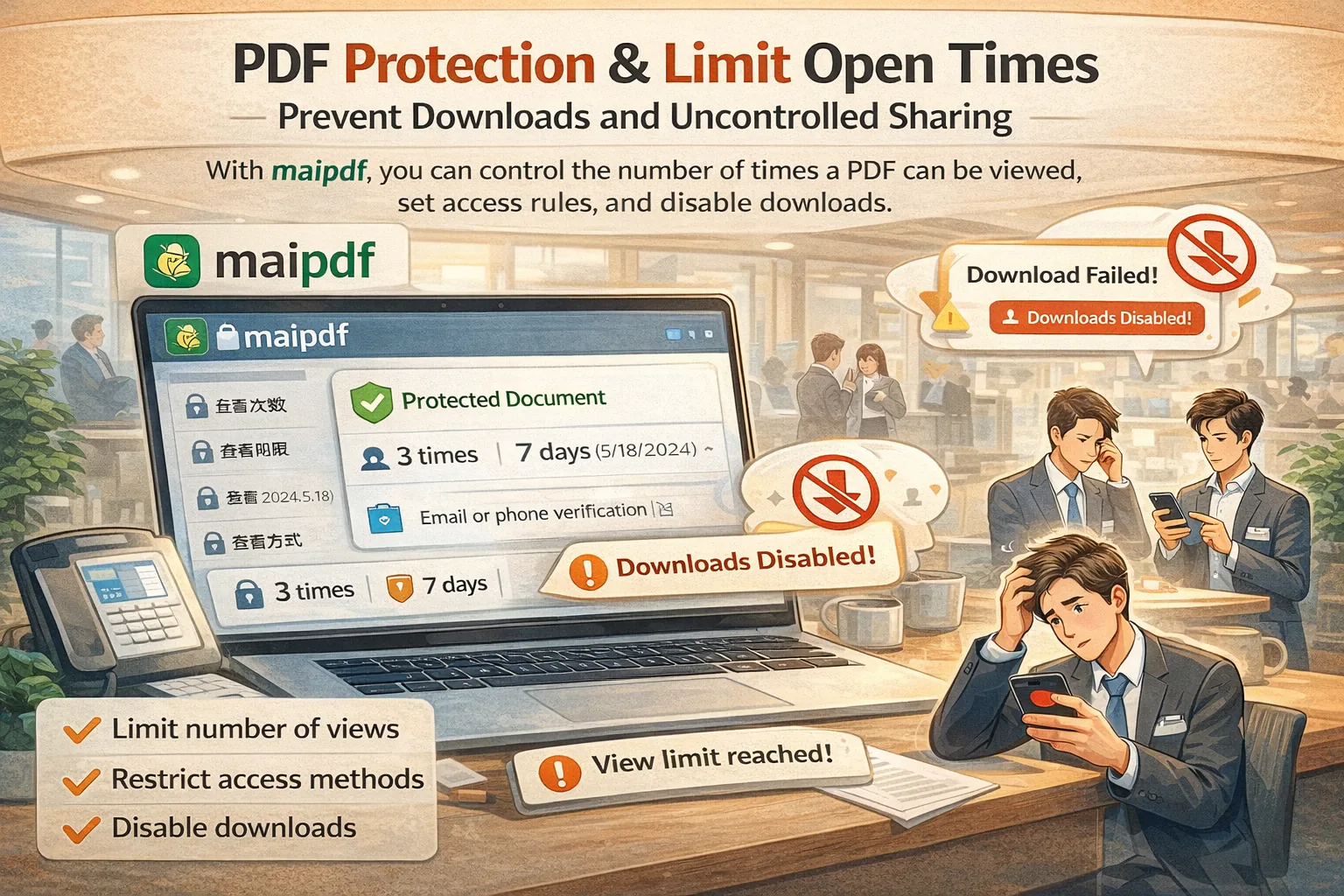
MaiPDF lets you attach a clear end rule to the share — an expiration date, a session length, or an open limit. When the rule is met, the link stops opening the document. To be precise about what that means: the entry point closes, the file itself is not destroyed — it stays in your account, and your access records stay readable.
Readers use the same link or QR while the share is active. When it closes, the access record trail still stays attached to the reading code, so you can review what happened during the live window.
Expiration date
Session length
Open limit
Records keep
While active, readers use one governed online view — same URL, same QR, same rules.
After the share closes, the access history still belongs to the same reading code.
Deadline
Session timer
Open counter
End Rules
Three ways to make a share close itself.
Pick any one rule, or stack them together. Whichever is met first closes the share.
1
Expiration date
When the whole share closes, no matter how many opens are left. Presets are 1 hour, 3 hours, 24 hours (the default), 5 days, a custom number of days, or Never.
The uploader detects your local time zone and shows the matching UTC time, so the deadline means what you expect.
2
Session length
How long a single reading sitting may last: 5 minutes, 15 minutes (the default), 30 minutes, 1 hour, or a custom value in minutes.
When the session runs out the reader can open the link again — but that consumes another open from the limit below.
3
Open limit
A total count shared across all readers, not per person. The default is 10. Once it is used up the link stops opening the document.
A limit above 10,000 switches the link into unlimited mode: no access records are logged, and dynamic watermark and read alerts become unavailable.
4
Stack any of them
Combine deadline, session, and count. Whichever is reached first closes the share. A 5-day link with 10 opens closes on day 5 even if only 2 opens were used — and closes at 10 opens even if day 5 has not arrived.
Rules are per-share — each new link can have its own deadline.
Expiry works together with verification and watermark layers.
Closed shares no longer serve the file, but records remain visible.
Workflow
Set it once, let the share close itself.
You do not resend the PDF or manually revoke it. The rule you set at creation time enforces the end point.
1
Upload PDF
Start with the document that should stop being reachable after a clear point in time.
2
Set end rule
Pick an expiration date, session length, or open limit — or combine more than one.
3
Share link or QR
Send the same governed link or print the QR. Readers use it while the rule is valid.
4
Access closes
When the deadline arrives or the count is used up, the link no longer accepts new opens.
Settings & Records
End condition lives in the share settings.
The closing rule is part of the share configuration and works alongside the access-record layer.
Pick the end point first
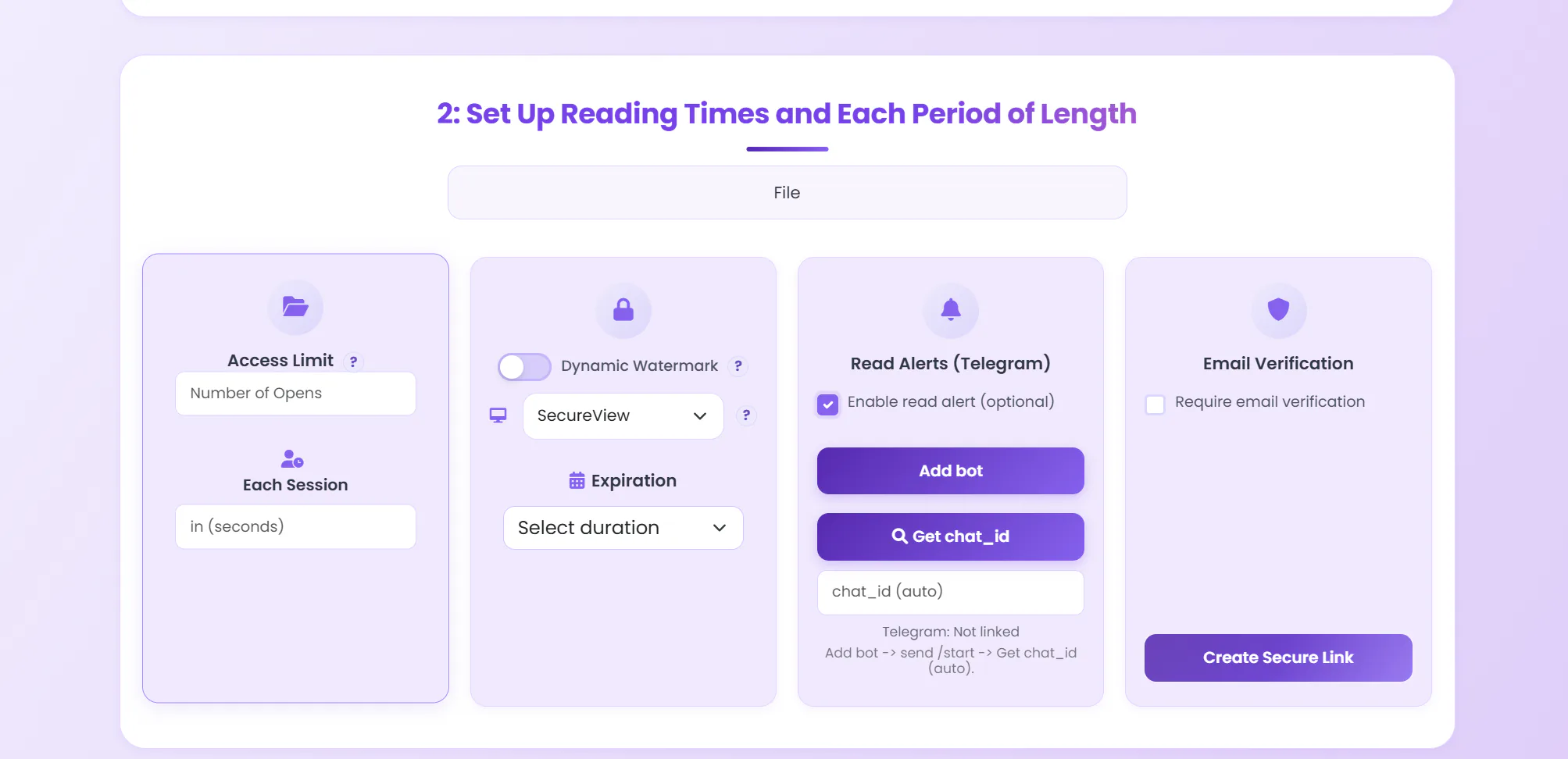
- Expiration date, session length, and open limit sit in the same settings panel.
- Same panel also configures verification, view mode, and watermark.
- Each share is independent — you can create a new one with different timing any time.
History stays after expiry
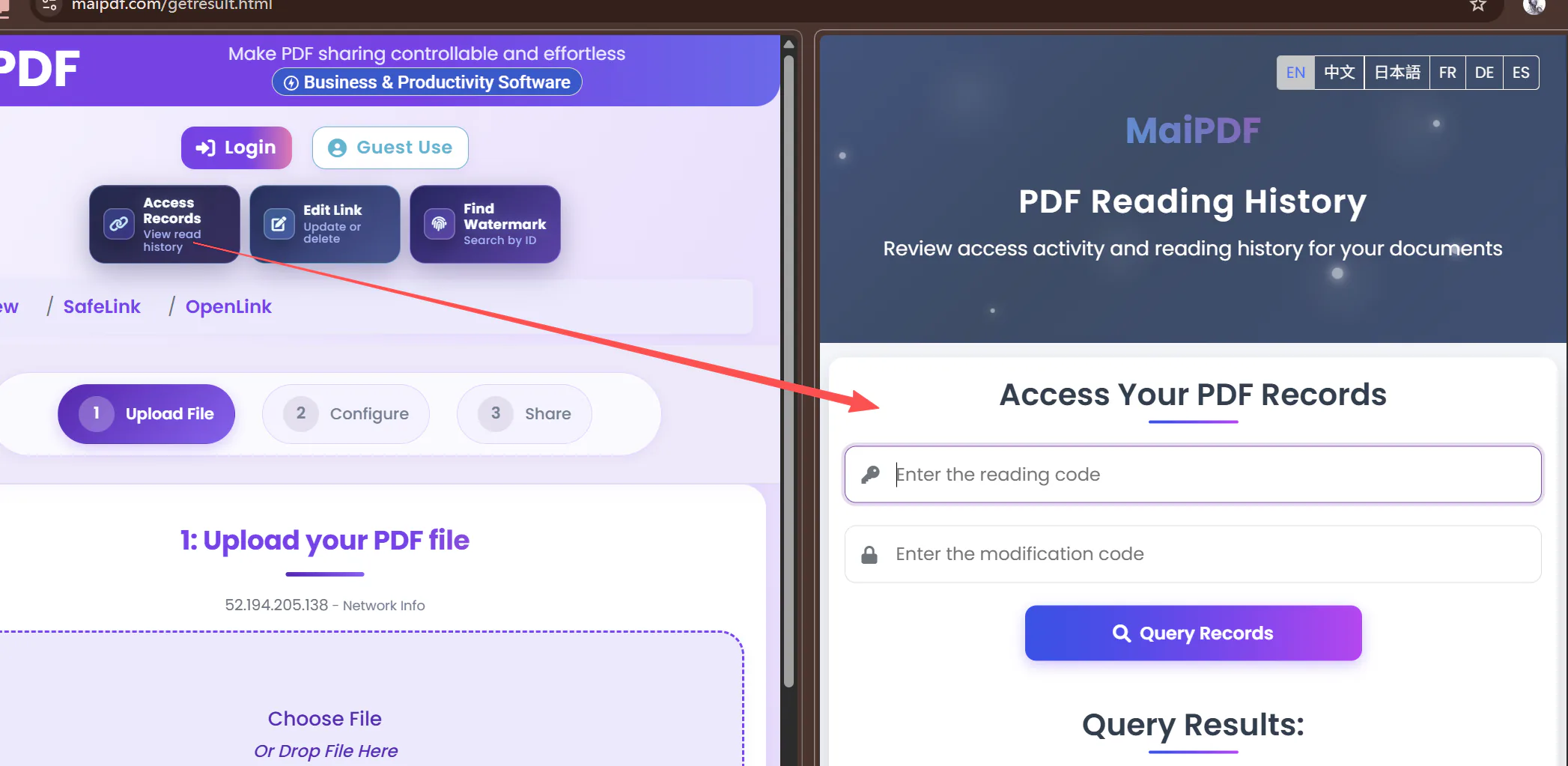
- Review who opened the PDF during the live window.
- Check repeat opens, timing patterns, or expired sessions.
- Use the same reading code to inspect records — even after the share has closed.
Use Cases
Where a timed share actually helps.
Use expiration when a document has a real shelf life, not when you only want to track opens.
Proposals & quotes
A proposal valid until the end of the month should stop being reachable after the deadline — not linger in inboxes forever.
Limited-time offers
Pricing sheets, promo decks, or seasonal materials close automatically when the campaign ends.
Drafts in review
Circulate a draft for a fixed review window. Once it expires, the link stops serving the stale version.
Event & training handouts
Give attendees access during the session and for a short grace period — then let the share close itself.
FAQ
Before you set a deadline.
The rule controls future access through the hosted link — not copies that already left the share.
What does the reader actually see when a share has closed?
They are redirected to a short page that says “Expired” — it does not reveal the file name, its size, or why the share ended, so a closed link gives nothing away about the document behind it. The same happens whether the deadline passed, the opens ran out, or you closed the share yourself.
Does refreshing the page use up another open?
Yes. The count is decremented once per successful open, and a refresh counts as a new one — there is no grace window that recognises it as the same reading session. This matters when you set a tight limit: tell recipients to keep the tab open rather than reloading, or leave enough headroom in the count. The same applies when a session length runs out and the reader opens the link again to continue.
Can I add more opens or extend the deadline after sharing?
Not as a direct edit. Control Center lets you change the session length, import a whole rule set from another of your PDFs, or delete the share — but there is no button that simply tops up the open count or pushes back the expiry date. The practical route is Settings Import: create another PDF carrying the settings you want, then import that rule set onto the existing share. Because it copies the whole rule set rather than one field, check that the other settings on the source PDF match what you intend before importing.
A share has closed. Is it permanently gone?
Not necessarily — and it helps to be precise about what “closed” means. When an end rule is met (or when a share is deleted, which simply sets its open count to zero), the link stops opening the document for everyone. What does not happen is the file being erased: the underlying record stays in your account and the access history stays readable, so you can still review who opened it before it closed. More usefully, as long as you kept both the reading code and the modification code, the share can be repointed at another PDF through the replacement flow. Replacement does not require the link to still be working, so a share that expired, ran out of opens, or was set to zero can be brought back into use with new content — on the same URL and the same QR code your recipients already hold. The real dead end is not a closed link; it is a lost modification code.
What happens to a file nobody opens for a long time?
Files that go unread for an extended period — roughly three months — may be removed from the server during routine cleanup, and at that point the link no longer serves the document. The same recovery applies: if you still hold the reading code and the modification code, you can replace the share with a fresh upload and keep the original link and QR code alive. If a share matters to you long-term, open it occasionally, or keep your own copy of the source PDF.
What are the actual expiry and session options?
Expiration presets are 1 hour, 3 hours, 24 hours (the default), 5 days, a custom number of days, or Never. Session length presets are 5 minutes, 15 minutes (the default), 30 minutes, 1 hour, or a custom value in minutes. The open limit defaults to 10 and is shared across all readers rather than counted per person.
What happens if I stack a deadline and an open limit?
Whichever condition is reached first closes the share. A link set to 5 days with a limit of 10 opens closes on day 5 even if only 2 opens were used, and closes at the 10th open even if day 5 has not arrived yet.
Does an expiry date use my time zone or UTC?
The uploader detects your local time zone and displays the matching UTC time next to the expiry setting, so the deadline you choose is the deadline your readers experience.
Can I set a PDF link to expire on a specific date?
Yes. Pick the expiration date before creating the share. The link works until that date; afterwards, it stops accepting new opens. The reading code still lets you review records.
Is expiration the same as self-destruct?
In MaiPDF they describe the same mechanism, but "self-destruct" is the looser word. "Expiration" emphasises a deadline; "self-destruct" emphasises that the link closes automatically once any end rule is met — date, duration, or count. Either way what ends is access through that link. Nothing is wiped from the reader’s device, and any screenshot or copy made while the share was open is unaffected. The file also remains in your own account, so you can still review its records or create a new share from it.
Can I combine expiry with verification or watermark?
Yes. Expiration, session length, open limit, email verification, and watermark are all per-share settings. You can stack any combination on the same PDF share.
Once a reader downloads or screenshots, can I expire that too?
Expiration governs access through the hosted link. Copies that were already downloaded, printed, or captured on a reader's device sit outside what a link-based rule can reach.
Can I change the deadline after sharing?
Use the reading code in Control Center to adjust the rule. You can shorten or extend expiry, or swap the file — the link stays the same reading code.
Product boundary · Online Sharing vs App DRM
Use the browser for reach. Use the app for capture protection.
Everything on this page describes online sharing — a link opened in an ordinary browser. A browser cannot refuse an operating-system screenshot, so no online setting blocks Win+Shift+S or a phone screenshot; what it gives you is reach, records, and rules you can change after sending. When you need the capture itself blocked — encrypted .maipdf files, device binding, remote revoke — that is MaiPDF App DRM, a separate route where the reader installs an app.
Start Here
Create one share with a clear end point.
Upload your PDF, pick a deadline, session length, or open limit, then send the link. The share closes itself when the rule is met — and the record trail remains for later review.