The link routes readers to a hosted viewer. The file never leaves the platform as a raw download unless you allow it.
MaiPDF PDF Link
Not a download URL
Rules apply on every open
Replace without resharing
A PDF link you can track, replace, and expire — not just a download URL.
A MaiPDF link is a managed route that stays under your control after you share it — no matter where it ends up.
Create the link once, distribute it across email, chat, social, print, or QR, then return at any time to see who opened it, swap the file behind the link, or end access entirely — all without the URL changing.
Trackable
Replaceable
Controllable
One URL
Expiry date, open count, email gate, and view mode are evaluated each time the link is opened — not just the first time.
Swap the file behind the URL at any time. Everyone with the original link gets the new version on their next visit.
Managed route
Live controls
Access records
QR included
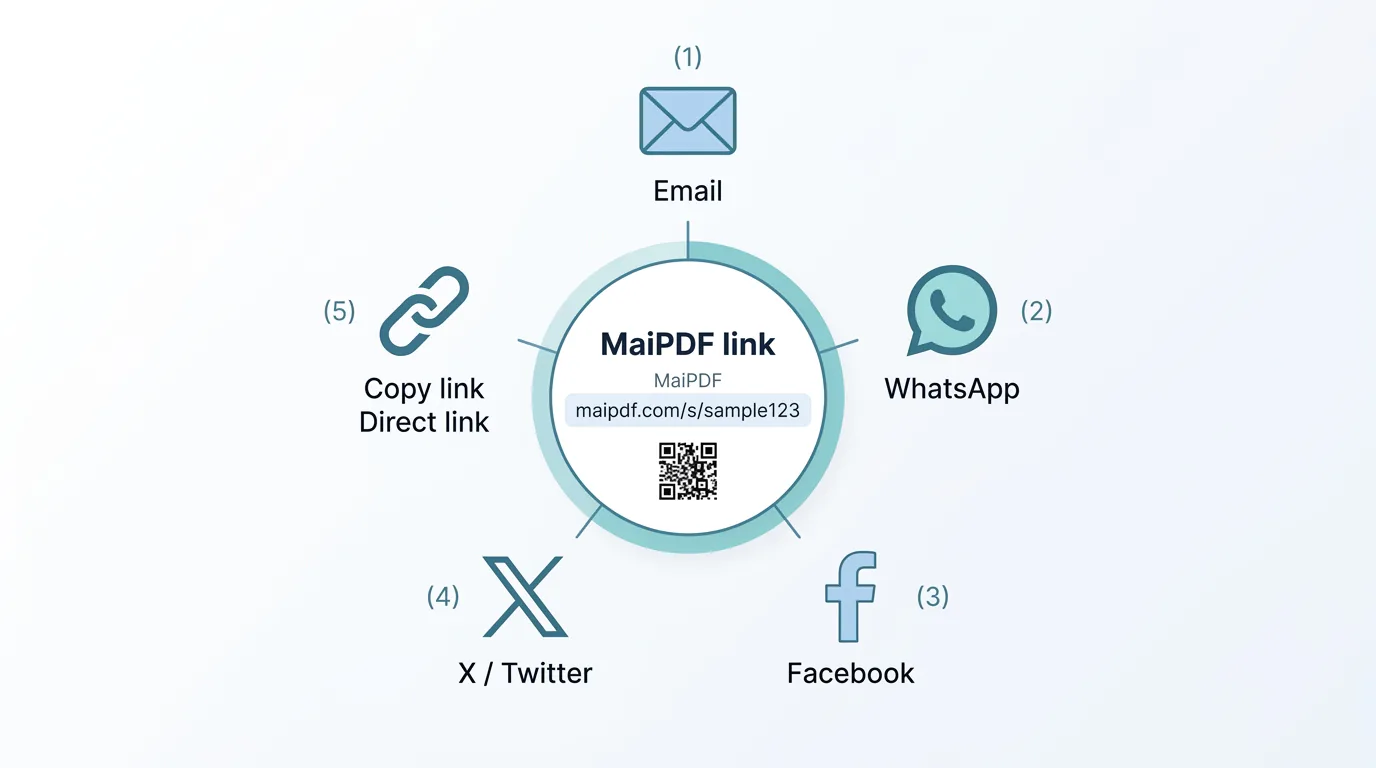
One URL, all channels
Paste in email, drop in chat, embed in a page, or encode into a QR code — the same link works everywhere.
Records stay attached
Every open is logged to the same share. Review activity at any time on the access records page, using the reading code plus the modification code.
Expire when done
Set a hard date or an open count limit. The link goes dark automatically — no manual follow-up required.
Update rules live
Change expiry, limits, or verification requirements from the control center. Changes take effect immediately.
How It Works
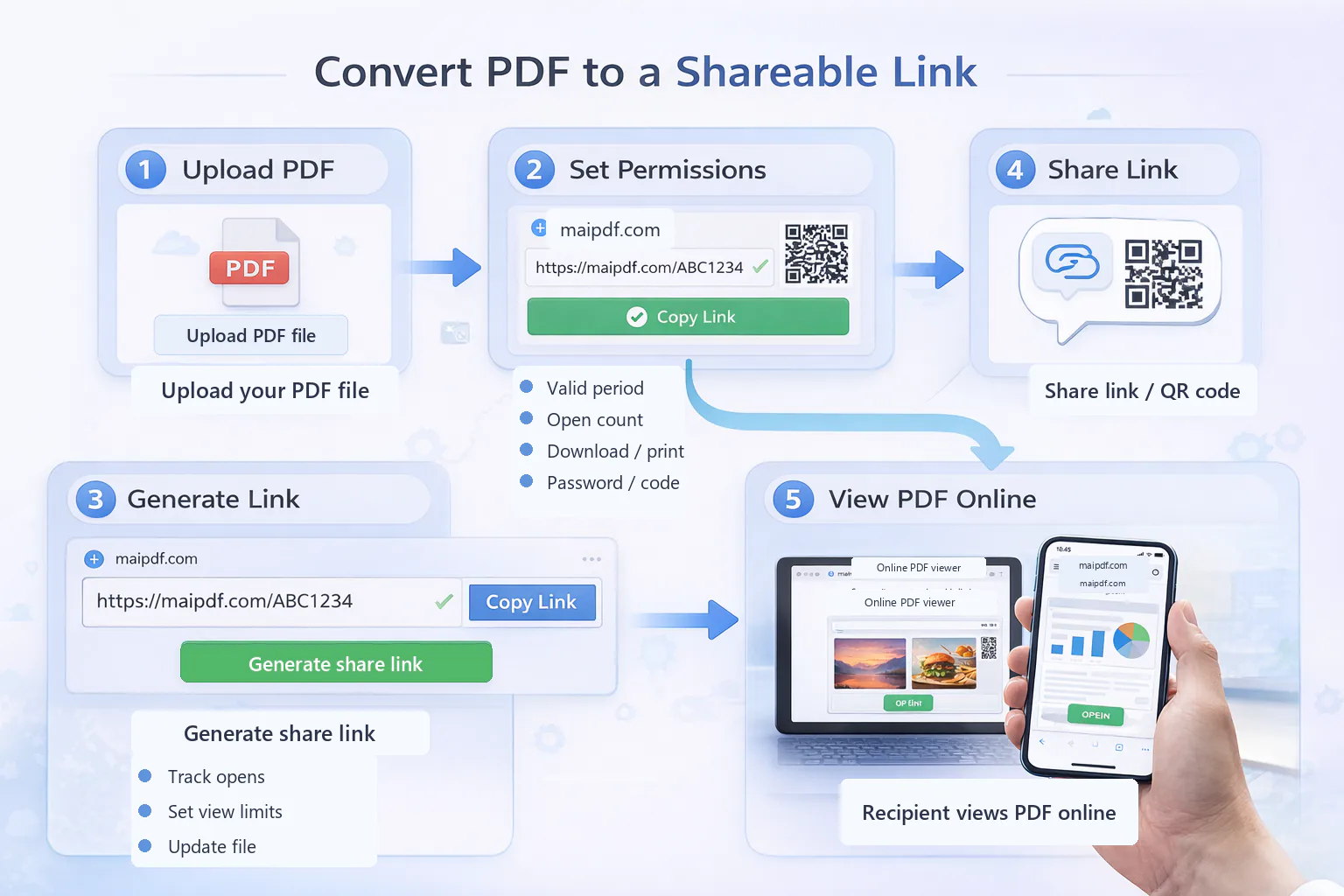
Five stages of a managed PDF link.
Each stage keeps the URL constant while giving you new levers — from first creation to final expiry.
1
Create
Upload a PDF and configure optional rules — open limit, expiry date, email verification, view mode. MaiPDF generates a stable URL and a matching QR code from the same result page.
2
Share
Paste the URL anywhere: email, chat, social post, printed QR, internal wiki, website embed. The same link works across every channel simultaneously.
3
Track
Each open is logged in the access records. Return at any time to see when the link was used. Add a Telegram bot for instant notification on every open.
4
Replace
Need to update the document? Swap the file from the control center. The URL stays the same — every reader automatically gets the revised version on their next open.
5
Expire
Let the expiry date fire automatically, allow the open count to reach its limit, or revoke the share manually. The link goes dark immediately when access should end.
URL never changes
No matter how many times you replace the file or adjust rules, the link address stays the same. You never need to redistribute a new URL to existing recipients.
Rules re-evaluated on every open
A reader who bookmarked the link months ago will still be checked against current expiry, open count, and verification settings on their next visit.
No recipient action needed
Changes you make in the control center are invisible to readers. They click the same link and either see updated content or a polite access-ended message.
QR always in sync
The QR code encodes the same URL. Any rule change or file replacement applies equally to users who scan the QR and users who type the link.
Full Lifecycle
What happens at each stage — in detail.
Each lifecycle stage has distinct options and behaviors worth understanding before you share.
Creation — setting up the link
When you upload a PDF, MaiPDF creates a hosted share with a stable URL and a QR code. At creation you can set an expiry date, a maximum open count, an email verification requirement, and a view mode (standard or fence view). All of these are optional, but they are set at upload — they are not fields you edit later. If you launch with a fully open link and want it tighter afterwards, you do that by replacing the share with a differently configured PDF, which keeps the same URL. A reading code is also issued at creation, which you use to access the access records and management tools for this specific share.
Sharing — distributing the URL
The link can be pasted into any text field or embedded in any context that accepts a URL. The QR code from the result page can be downloaded and dropped into print designs, presentation slides, or signage. Because the link is a standard HTTPS URL, no recipient needs a plugin, account, or special app — the PDF opens directly in any modern browser. You can share across email, team chats, social platforms, printed materials, internal documentation, and embedded web pages simultaneously, all resolving to the same hosted share.
Tracking — reading the access records
Every time the link or QR code is opened, the event is logged in the access records attached to that share. The record includes a timestamp and, if email verification is enabled, the verified address. You can review this history at any time on the access records page by entering the reading code together with the modification code you were given at upload. For real-time visibility, connect the share to a Telegram channel so an alert fires the moment each open occurs. The records persist even after the link expires — you retain a full history of who accessed the document and when.
Replacement — swapping the file
If the document needs an update, replace the underlying file from the control center without touching the URL. The replacement takes effect immediately — the next person to open the link sees the new file. Previous opens remain in the access history under the same share. This is especially useful for documents that go through regular revision cycles such as price sheets, policy documents, or event guides, where resharing a new link each time would be disruptive and create confusion about which version is current.
Expiry and revocation — ending access
Access can end in three ways: the expiry date you set fires automatically; the open count limit you set is reached; or you manually revoke the share from the control center. When any of these conditions are met, the link and QR code stop resolving to the document. Readers see an access-ended message instead. Your access records from before expiry remain intact and accessible with the reading code. Expiry and revocation are the cleanest way to manage time-sensitive documents — no need to track down copies or contact individual recipients.
Sharing Channels
Where a MaiPDF link fits into your workflow.
Because the link is a plain HTTPS URL, it drops cleanly into any channel that carries text or displays images.
Direct message delivery
Paste the link into an email body or a chat message in Slack, Teams, WhatsApp, or Telegram. Recipients click once and the PDF opens in their browser — no attachment size limits, no inbox clutter, and no stale copies floating around after you update the document through the control center.
Post or profile link
Drop the URL into a LinkedIn post, Twitter thread, or Instagram bio link to make a PDF publicly accessible. Because the link is managed, you can swap the file or expire it without editing the original post — the URL in the post continues to work and serves the current version until you say otherwise.
Print and physical materials
Download the QR code from the result page and embed it in brochures, posters, packaging, or name badges. Scanning the code resolves to the same managed share, meaning all rules — expiry, open limits, email gate — apply to physical scans exactly as they do to text-link clicks.
Team documentation hubs
Link directly from Notion, Confluence, or SharePoint pages to the hosted PDF. When the document is revised, replace the file in MaiPDF and the wiki link automatically serves the new version — no need to edit the wiki page or notify the team of a new attachment URL.
Web pages and landing pages
Embed the link as a button or text anchor on a website. The PDF opens in the reader's browser tab without requiring a download. If the document is updated or access should end, the change takes effect immediately without touching the website HTML or redeploying anything.
Mobile-first distribution
MaiPDF shares work on mobile browsers without any app install. Send the link via SMS or WhatsApp for immediate tap-to-open access on any smartphone. The same controls and tracking apply on mobile as on desktop — each mobile open is recorded in the access history just like a desktop visit.
Comparison
MaiPDF link vs. file attachment — a full breakdown.
Attachments work for simple one-time handoffs. Once distribution, tracking, or version control matters, the differences become concrete problems.
| Dimension | File attachment (email / drive) | MaiPDF link |
|---|---|---|
| Control after sending | None. Once the file is downloaded or forwarded, you have no ability to change access or content. | Full. Replace the file, change the rules by replacing the share, or end access outright — the URL never changes. |
| Version updates | Must resend a new attachment individually to every recipient. Old copies remain in inboxes permanently. | Replace the file once. All existing links and QR codes serve the updated version instantly. |
| Access records | Not available. You cannot tell whether the recipient opened the attachment or forwarded it to others. | Every open is logged. Review timestamps and — with email gate enabled — reader identities in the access records. |
| Expiry | Files do not expire. Copies persist in inboxes and download folders indefinitely after you send them. | Set an expiry date or open count. Access ends automatically when the condition is met — no manual cleanup needed. |
| File size limits | Email attachment limits vary by provider — typically 10–25 MB. Large files often bounce or get stripped by spam filters. | The PDF is hosted once and streamed on demand. Recipients only download what they view, and there are no per-message size constraints. |
| Forwarding risk | A forwarded email carries the full file. The new recipient has identical access with no record and no expiry applying to them. | A forwarded link still goes through the same rules. Expiry, open limit, and email gate apply regardless of how many hops the URL traveled. |
| Reader experience | Reader must download and open the file locally. Experience varies by device and installed PDF viewer software. | PDF opens directly in the browser — consistent on desktop, tablet, and mobile with no install required. |
| Browser vs. download | File is always downloaded to the reader's device. No in-browser preview without an external viewer plugin. | Hosted viewer presents the PDF in-browser. The underlying file is not handed to the reader as a raw download unless you configure it that way. |
Link Controls
Advanced controls available on every MaiPDF link.
Controls are optional, and all of them are chosen at upload. Changing one afterwards means replacing the share with a PDF configured the new way — which is why none of it ever requires changing the URL you already shared.
Open count limit
Set a hard cap on how many times the link can be opened in total. Once the count reaches the limit, subsequent attempts return an access-ended message. Use this for exclusive previews, limited-run offers, or documents with a defined audience size. The cap is fixed once the link exists. To raise or lower it — including topping up a link that has run out — replace the share with a PDF carrying the count you now want; the URL stays the same.
Expiry date
Choose a specific calendar date after which the link automatically stops resolving to the document. The expiry fires at the date you set regardless of how many opens occurred before then. Ideal for time-sensitive materials — event programs, limited-time offers, or contracts with a validity window. The date is fixed once the link exists. To move or remove it, replace the share with a PDF carrying the deadline you now want — the URL is unaffected.
Email verification gate
Require readers to prove control of an email address you approved in advance. You list the exact addresses at upload — up to 50, matched in full, with no domain wildcards. A reader types their address, and only if it is on that list do they receive a 6-digit code, valid for 5 minutes. The verified address is logged with the open, giving you a trail of named readers rather than anonymous counts, and forwarding the link to someone outside the list gets them nowhere.
View-only mode
Display the PDF through a browser viewer that removes the obvious download and print pathways. Readers can read the document in-browser but cannot easily save a local copy. For stronger deterrence, fence view lays a moving mesh of thin vertical bars over the page, so a screen grab captures the document through that interference rather than cleanly.
Dynamic watermark
Overlay a visible watermark on each page of the document when it is opened through the share link. What appears on the page is a code unique to that open — not the reader’s details, so nothing is exposed to anyone glancing at the screen. The code resolves, in your access records, to the verified email address when the email gate is on, plus the IP, browser and time in every case. That makes any leaked copy traceable back to the exact open it came from. There is no custom-text option; the mark is a single on/off switch.
Real-time read alerts
Connect the share to a Telegram bot channel to receive an instant notification each time the link is opened. The alert fires at the moment of access, before the reader finishes reading. This is useful when you need to know immediately that a time-sensitive document has been received and opened — without waiting to check the access records manually.
FAQ
Common questions about MaiPDF links.
What is a MaiPDF link?
A MaiPDF link is a managed URL that routes readers to a hosted, browser-viewable version of your PDF. Unlike a direct file download URL, it stays under your control after you share it. You can track every open, replace the underlying file, change its rules by replacing the share, or end access outright — all without changing the URL or contacting recipients.
Can I replace the PDF file after sharing the link?
For the exact guest-mode and logged-in workflow, see the delete and replace PDF guide.
Yes. You upload the new PDF as a separate share first, then point the original reading link at it — there is no "upload a replacement" button inside an existing share. The URL does not change, so everyone who opens the link afterwards, including people who bookmarked it months ago, sees the new version. Two things worth knowing: the replacement carries its own settings across too, not just the file, so configure it before you swap — and the access records survive, because they are keyed to the reading code rather than to the file. Opens logged before the swap stay in the same unbroken history.
Where can I paste a MaiPDF link?
Anywhere a plain URL is accepted: email body, chat messages, social media posts, LinkedIn profiles, internal wikis, website anchor tags, SMS, or WhatsApp. The link opens in a standard browser with no app or plugin required. It also encodes cleanly into a QR code for print and physical distribution.
What happens when the link expires?
Once the expiry date you set is reached, or the open count limit hits zero, the link stops resolving to the document. Readers who follow the link after that point see an access-ended message rather than the PDF. Your access records from all opens before expiry remain available and accessible with your reading code.
Can I track who opened the PDF link?
Yes. Every open is logged with a timestamp in the access records for that share. If you enable the email verification gate, the verified address is also recorded with each open, giving you identifiable reader history rather than just anonymous counts. For real-time notification, connect the share to a Telegram bot so an alert fires the moment an open occurs.
Can I set a password on a MaiPDF link?
MaiPDF uses an email verification gate rather than a traditional password. When enabled, a reader must prove control of an address you approved in advance — they enter it, and only a match on your list receives the 6-digit code. This is more traceable than a shared password — a password can be forwarded silently, but an email address is recorded individually for each open, giving you a log of who specifically accessed the document.
Can I use both a link and a QR code for the same PDF?
Yes. MaiPDF generates both from the same result page the moment a PDF is uploaded. The text link and the QR code both resolve to the same hosted share, with the same access rules and the same access record trail. You do not need a separate system for digital and physical distribution — they are the same share presented in two formats.
How do I revoke a MaiPDF link?
You have three options. Set the expiry date to a past date — the link goes dark immediately. Reduce the open count limit to zero — subsequent opens are blocked. Or use the control center to deactivate the share directly. Any of these stops all future access without requiring you to contact recipients or retrieve distributed copies.
Can I update the link rules after I have already shared it?
Yes, but not by editing them in place. Session length is the only rule with a direct control; expiry date, open limit, email verification, view mode and watermark are fixed when you upload. You change them by replacing the share: upload a second PDF configured the way you now want it, then point the existing reading link at it. The URL never changes, and the new rules apply to everyone who opens it afterwards. Guests do this at replace-file.html with both reading codes and both modification codes; signed-in users pick both files in Control Center. Opens that already happened are not affected.
Does the MaiPDF link work in QR form too?
Yes. The QR code generated from the result page encodes exactly the same URL as the text link. All rules — expiry date, open count limit, email verification, view mode, dynamic watermark — apply equally to readers who type the URL and readers who scan the QR code. There is no separate QR-specific URL or separate rule set to manage.
Product boundary · Online Sharing vs App DRM
Use the browser for reach. Use the app for capture protection.
A managed PDF link lets you track, replace, expire, or close a browser share. It does not convert the delivered document into a protected app file. When screenshot blocking, encrypted .maipdf files, device binding, or remote revoke is required, use MaiPDF App DRM.
Get started
Create your first managed PDF link.
Upload a PDF, configure optional rules, and get a link and QR code from the same result page — ready to share anywhere.