MaiPDF App · DRM

When a link is not enough: the file itself becomes the protection.

Online Sharing keeps a PDF behind a browser page you control. The MaiPDF app goes a layer deeper: it turns the PDF into an encrypted .maipdf package that opens only inside the app, on devices you allow, for as long as you allow — and it asks the operating system to refuse screenshots outright.

Encrypted .maipdf OS-level capture block Device binding Revoke after delivery Watermark always on
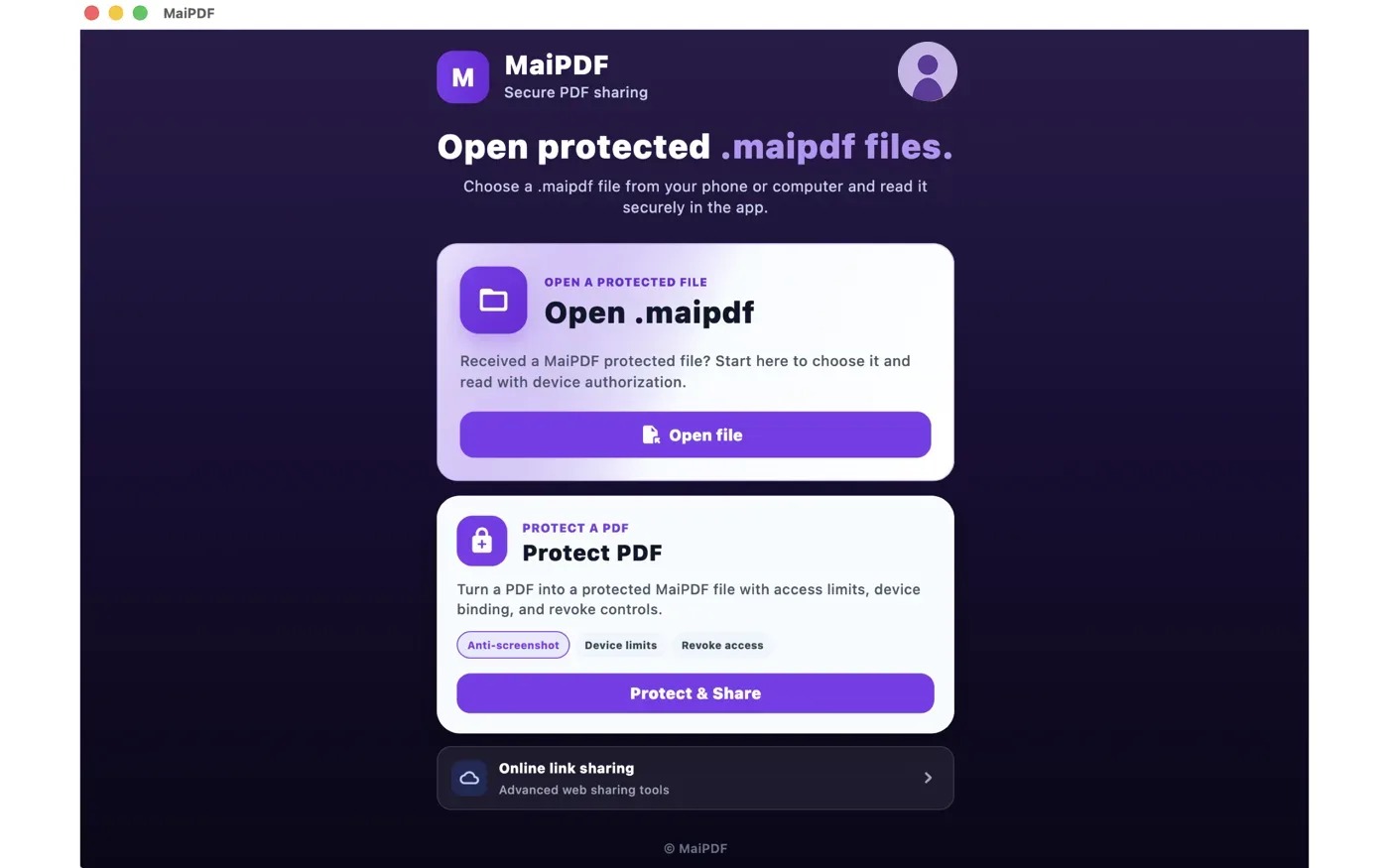
MaiPDF app home screen with Open .maipdf and Protect PDF
Two doors on opening: read a protected file you received, or protect one of your own.
What It Actually Is

A container, a licence, and a reader that refuses to leak.

Three pieces do the work. Knowing which does what makes the limits easy to reason about.

The container

Encrypted .maipdf

  • Your PDF is encrypted with AES-GCM 256-bit before it ever leaves your machine.
  • The package carries the licence ID, the authorising endpoint, the initialisation vector and half the key. The other half never travels with the file.
  • The plain PDF is never written to the reader’s disk. It is decrypted in memory, inside the app, each time it opens.
  • Forwarding the file to someone else forwards a locked box, not the document.
The licence

Checked on every open

  • Opens, expiry and device limits live on the server, not in the file — which is why they still apply after delivery.
  • This is what makes revoke real: cut access and the next open fails, even on a copy already sitting on someone’s laptop.
  • A revoked reader sees a plain message that access was revoked by the sender.
The reader

Refuses the capture

  • The window is marked protected at the OS level, so a screenshot or recording returns black — not a warning after the fact.
  • Reading stays comfortable: the page is fully visible, with no moving overlay in the way.
  • Every page carries a traceable watermark that cannot be switched off.
Protecting A PDF

Pick a file, set the rules, share the package.

Everything is decided at packaging time, and the encryption happens on your own device before anything is uploaded.

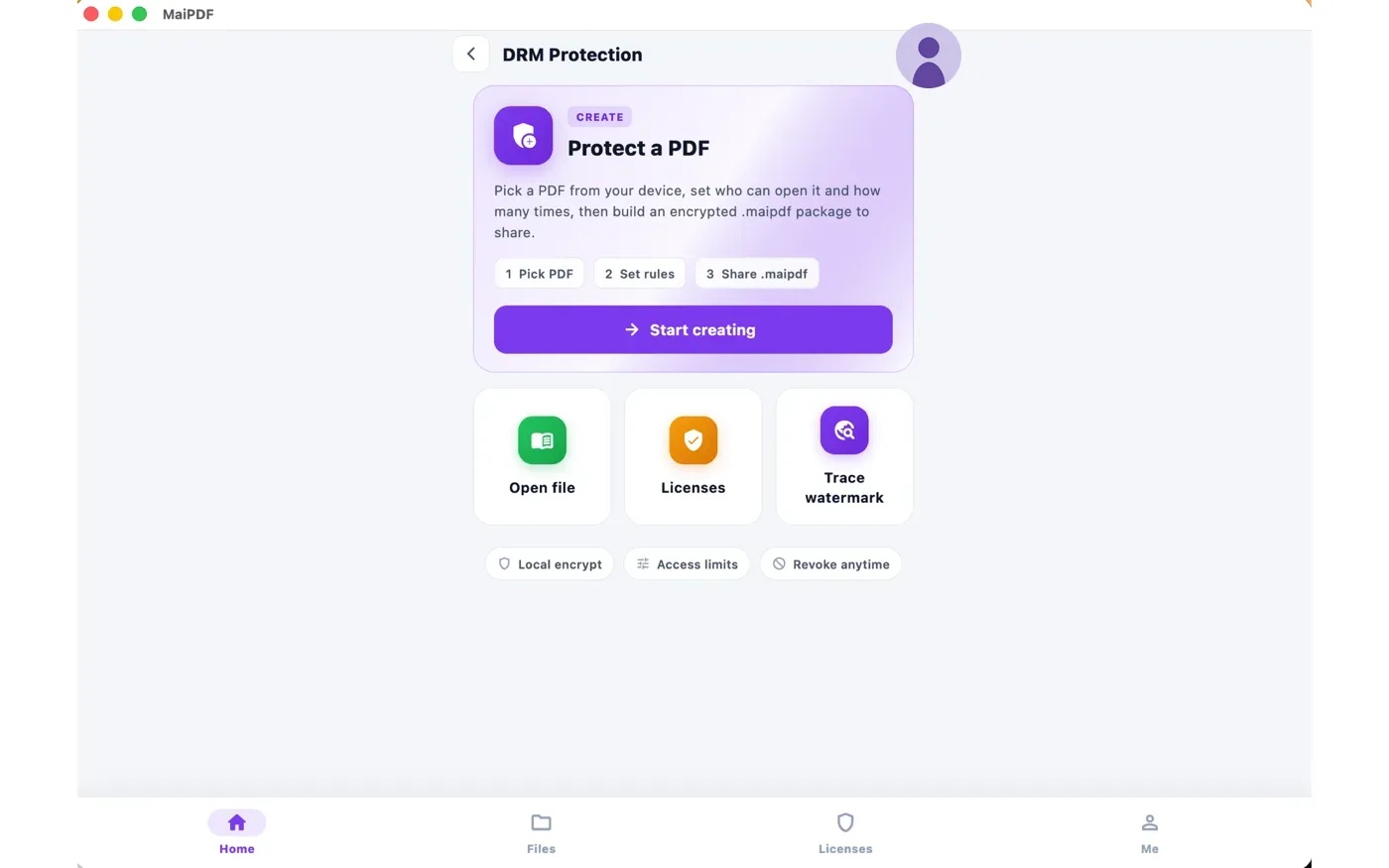
MaiPDF app DRM Protection screen with Protect a PDF, Open file, Licenses and Trace watermark
The DRM screen: create a protected file, open one, manage licences, or trace a leak.

The rules you can set

  • Max opens — any number from 1 upwards, or unlimited.
  • Expiry — 1 day, 7 days (the default), 30 days, or a custom period.
  • Audience — leave it open to whoever holds the file, or name the recipients by email.
  • Device limit — with an open audience this caps total devices for the file (server ceiling 10,000). With named recipients it becomes a cap per recipient instead, up to 100 devices each.
Recipient addresses can be pasted separated by line breaks, commas, semicolons or spaces — they are trimmed, lowercased and de-duplicated automatically.
There is no watermark switch and no batch upload: one file at a time, always watermarked.
Capture Protection

Four platforms, four native mechanisms.

This is the part a browser fundamentally cannot do. A web page has no way to refuse a system screenshot shortcut such as Win+Shift+S; a native window can ask the OS to exclude itself from capture entirely.

How each platform does it

The actual mechanism

  • AndroidFLAG_SECURE on the window.
  • WindowsWDA_EXCLUDEFROMCAPTURE via SetWindowDisplayAffinity.
  • macOS — the window’s sharingType set to none.
  • iOS — content rendered through a layer the system excludes from capture.
Honest limits

What it does not stop

  • A camera pointed at the screen. No software prevents that — which is exactly why the watermark cannot be turned off.
  • On iOS, while a screen recording or AirPlay mirror is running, the app covers the page for the reader too, rather than leaving it visible on a broadcast screen.
  • It needs the reader to install an app, so it suits high-sensitivity files rather than casual shares.
  • Like any single control, it is one layer. Pair it with open limits, expiry and the watermark trail.
Hostile environments are refused, not trusted. The app runs a device-integrity check at launch and will not load at all on jailbroken, rooted or emulated devices — and on desktop, in flagged environments such as virtual machines. Those are precisely where capture protection can be defeated.
Licences

What you can see and change after the file is out.

Every protected file has a licence page. This is where a delivered document stays under your control.

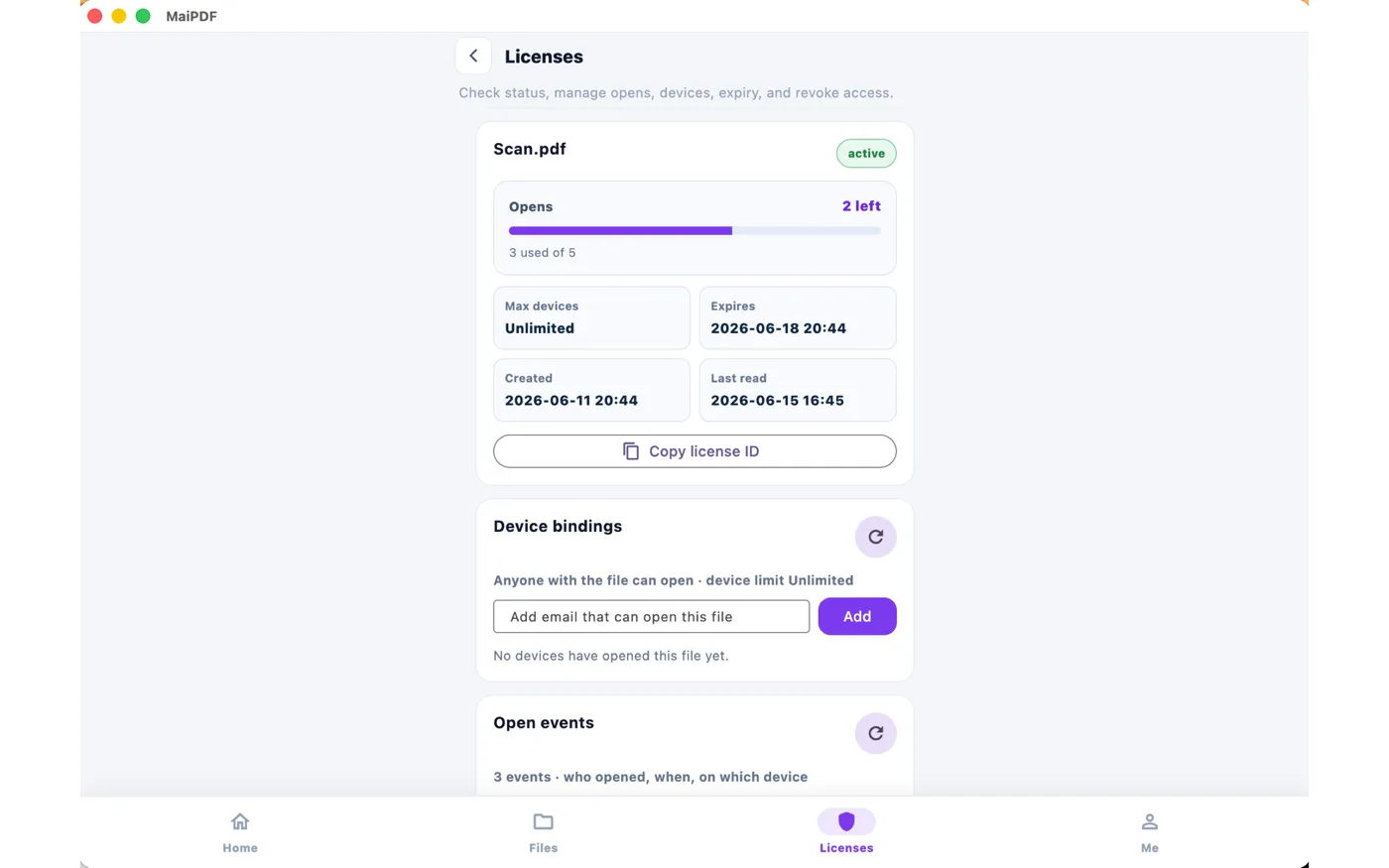
MaiPDF licence detail showing opens used, device limit, expiry, device bindings and open events
Opens used, device limit, expiry, created and last-read times, plus device bindings and open events.

On the licence page

  • Opens — used and remaining, as a running count.
  • Max devices and expiry for that file.
  • Created and last read timestamps.
  • Device bindings — which devices have opened it, and a field to add an email allowed to open it.
  • Open events — who opened, when, and on which device.
  • Copy licence ID, and revoke when you want it to stop.
Not signed in? The Lookup licence box takes a licence ID plus its modification code — the same idea as the reading code and modification code on the web side.
Tracing A Leak

The one control that still works after a photograph.

Every page carries a faint tiled code tied to that licence and device. If a page is photographed and surfaces somewhere it should not, that code is in the photograph too.

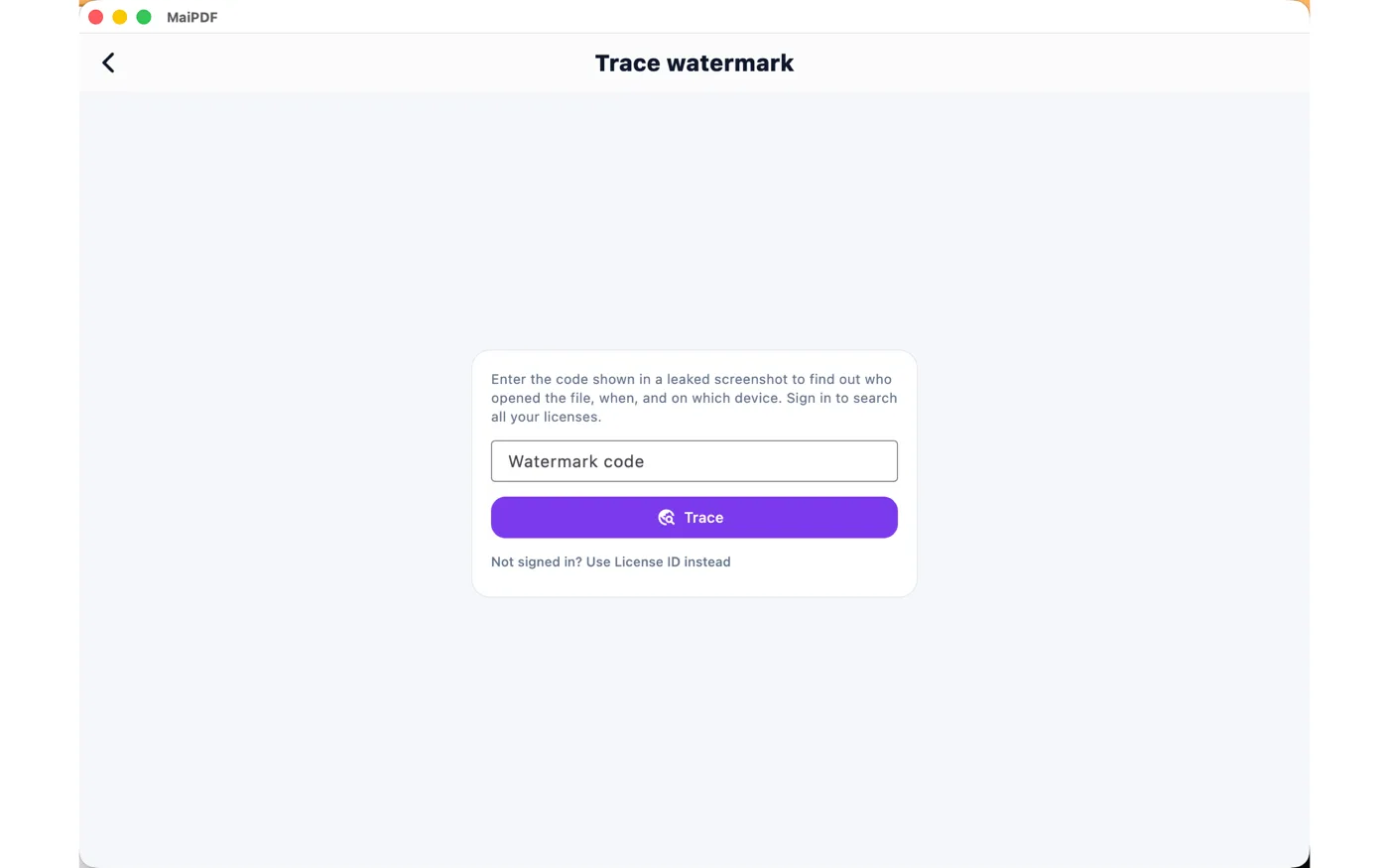
MaiPDF Trace watermark screen where a code from a leaked screenshot is entered
Type the code from the leaked image; the app returns who opened the file, when, and on which device.

How tracing works

  • Read the code off the leaked screenshot or photo.
  • Enter it under Trace watermark in the app.
  • Signed in, it searches every licence you own. Not signed in, the licence ID plus its modification code works instead.
  • You get the reader, the time, and the device behind that specific open.
The mark is drawn per open, so two readers of the same file — and the same reader twice — never carry the same code.
App DRM vs. Online Sharing

Reach on one side, control on the other.

They are different routes, not versions of each other. Most people use both, for different documents.

Online Sharing

A link in a browser

  • Reader clicks and reads. Nothing to install.
  • Open limits, expiry, email or SMS verification, records, replaceable file.
  • Cannot block screenshots — a browser has no such power. The watermark makes captures traceable instead.
  • Best for reach: proposals, brochures, anything going to people you cannot ask to install software.
App DRM

An encrypted file in the app

  • Reader installs the app, then opens the .maipdf.
  • Encryption, device binding, revoke after delivery, forced watermark, hostile-environment block.
  • Blocks screenshots at the operating system.
  • Best for control: contracts, research, anything where a leak is expensive enough to justify the install.
The app also links out to Online Sharing, so you can start either way from the same place.
Note for Chinese users: maipdf.cn does not offer App DRM from its upload page — its third view mode is FenceView. App DRM runs through the international side.
Platforms & App Settings

Where it runs, and what is in the app.

Supported

Windows, macOS, iOS, Android

  • All four have the native capture block described above.
  • The same .maipdf file opens on any of them.
  • Each device gets a device ID, shown in the app, which is what device binding and access limits are counted against.
In the app

Settings worth knowing

  • Language — auto-detected.
  • Security — screenshot protection and app checks.
  • Device ID — copyable, used for binding.
  • A device blacklist appears in settings as planned, not something available today — worth saying plainly rather than counting on it.
FAQ

What people ask before their first protected file.

Do my readers need an account to open a .maipdf file?
No. They install the MaiPDF app and open the file. Authorisation is carried by the licence inside the package, not by an account. You can go further and lock a file to named email addresses at packaging time, but that is a choice, not a requirement.
What exactly is a .maipdf file?
A container holding your PDF encrypted with AES-GCM 256-bit, plus the licence metadata: the licence ID, the API endpoint that authorises opens, the initialisation vector and half of the key. The other half never travels with the file. The PDF never exists as a plain file on the reader's disk - it is decrypted in memory inside the app each time it is opened.
Does the screenshot block really work?
On Windows, macOS, Android and iOS, yes - the app asks the operating system to mark its window as protected, so the capture comes back black rather than being detected afterwards. Each platform uses its own mechanism: FLAG_SECURE on Android, WDA_EXCLUDEFROMCAPTURE on Windows, sharingType set to none on macOS, and a system-excluded rendering layer on iOS. One thing to know about iOS: while a screen recording or AirPlay mirror is actually running, the app covers the page for the reader too rather than letting it stay visible on a broadcast screen. Nothing stops a camera pointed at the screen - for that, the watermark is the answer.
Can I revoke a file after I have already sent it?
Yes. That is the core difference from a link: the licence is checked on the server every time the file is opened, so revoking stops the next open even for copies already sitting on someone's laptop. The reader then sees a message saying access to the file has been revoked by the sender.
Can I turn the watermark off?
No. In the app the watermark is always on - there is no switch for it, either when packaging or in the reader. Every page carries a faint tiled code tied to that licence. This is deliberate: once a file has left your server, the watermark is the only control still working, and it is the only thing that helps against a camera pointed at the screen.
How do I find out who leaked a page?
Open Trace watermark in the app and type the code visible on the leaked image. Signed in, it searches across all your licences; without an account, the licence ID plus its modification code works instead. It returns who opened the file, when, and on which device.
What happens if I uninstall and reinstall the app?
The app's recent-files list and its cached copies of packages live in local app storage, so a reinstall starts empty. The licences on the server are untouched, so nothing is really lost if you kept the codes - but without them there is no way back to a licence the app has forgotten. Signing in avoids this entirely, since an account can look up all of its own licences after any reinstall.
Which devices can open a protected file?
That is your choice at packaging time. Leave it open and anyone holding the file can open it, up to the device cap you set (the server allows up to 10,000). Or name the recipients by email, in which case the cap applies per recipient instead, up to 100 devices each. Paste addresses separated by line breaks, commas, semicolons or spaces - they are trimmed, lowercased and de-duplicated for you.
Will it open on a jailbroken phone or in a virtual machine?
No. The app runs a device-integrity check at launch and refuses to load at all on jailbroken, rooted or emulated devices, showing a full-screen block instead. On desktop the same gate covers flagged security environments such as virtual machines. The reasoning is simple: those are exactly the environments where the capture protections can be defeated, so trusting them would make the protection meaningless.
How is this different from Online Sharing?
Online Sharing protects a link: the reader opens a browser page, and you control opens, expiry, verification and records - but a browser cannot refuse a system screenshot, so capture stays possible. App DRM protects the file: it becomes an encrypted package that opens only in the app, where the operating system itself can refuse the capture. Online Sharing wins on reach, since anyone can click a link. App DRM wins on control, at the cost of asking your reader to install something.
Start Here

Protect one real file and watch what a screenshot captures.

Install the app, pick a PDF, set the opens and expiry, and send the .maipdf. Then try to screenshot it.